
How to add Google reviews to a Wix website (no app needed)
Wix has no element that reads your Google profile. You have two routes, and the difference shows up the first time a long review arrives.
Lachlan Fea 8 min read
In this article10 sections

To add Google reviews to a Wix website, paste one line of HTML into Wix's Embed HTML element. Wix cannot pull reviews from a Google Business Profile by itself. You need either an app from the Wix App Market or a snippet from a review widget service. Both give you a block on the page that refills itself as new reviews come in.
Checked on 6 September 2026 against Wix's own help centre, Google's review rich results documentation and the FTC's consumer reviews rule. The click paths below are the Wix Editor, with a note on Wix Studio further down. I could not sign in to a Wix account for this piece, so the editor screenshots are Wix's own, taken from the support articles they belong to.
Wix has no Google reviews element
Wix's own page on adding customer testimonials offers two things: preset testimonial strips under Add Elements > Strip, and repeater lists under Add Elements > List > Repeaters. You type the content into both. Its closing tip is to "open the Wix App Market and type 'Testimonials' in the search". It does not mention Google, and the Wix Editor has nowhere to enter your business name and pull back your rating.
That is why the search results for this are almost all vendors. Your choice is an app or a snippet.
Route 1: an app from the Wix App Market
You install a Google reviews app, connect your profile inside it, and drop its element on the page. The install path in Wix's own instructions is Add Apps in the editor, search, open the app, + Add to Site, then Allow and Add to confirm.
Cost is not uniform. Wix's App Market page says "some apps have both a free and premium version while others require a premium upgrade". The free tier is usually where the review count cap and the vendor's badge live.
Support is not Wix's, and billing is separate. "Wix Customer Care can only assist with apps made by Wix"; for a third-party app the contact details sit in the App developed by section of its App Market page, the price is set by its developer, and the subscription is cancelled from Subscriptions in your Wix account. Wix is direct about the rest: "It is not possible to receive a refund for an app subscription."
This route is legitimate and keeps the settings in the editor you already use. The block only exists on Wix, so moving the site means setting up the connection again.
Route 2: a Google reviews widget for Wix, as one HTML snippet
A widget service keeps the connection to your Google Business Profile, reads the reviews on a schedule and gives you one line of HTML. Wix's Embed HTML element accepts that line.
The snippet is usually a single script tag with an id in it:
<script src="https://app.cloutly.com/add-widget-v2.js" data-widget="YOUR-WIDGET-ID" async></script>
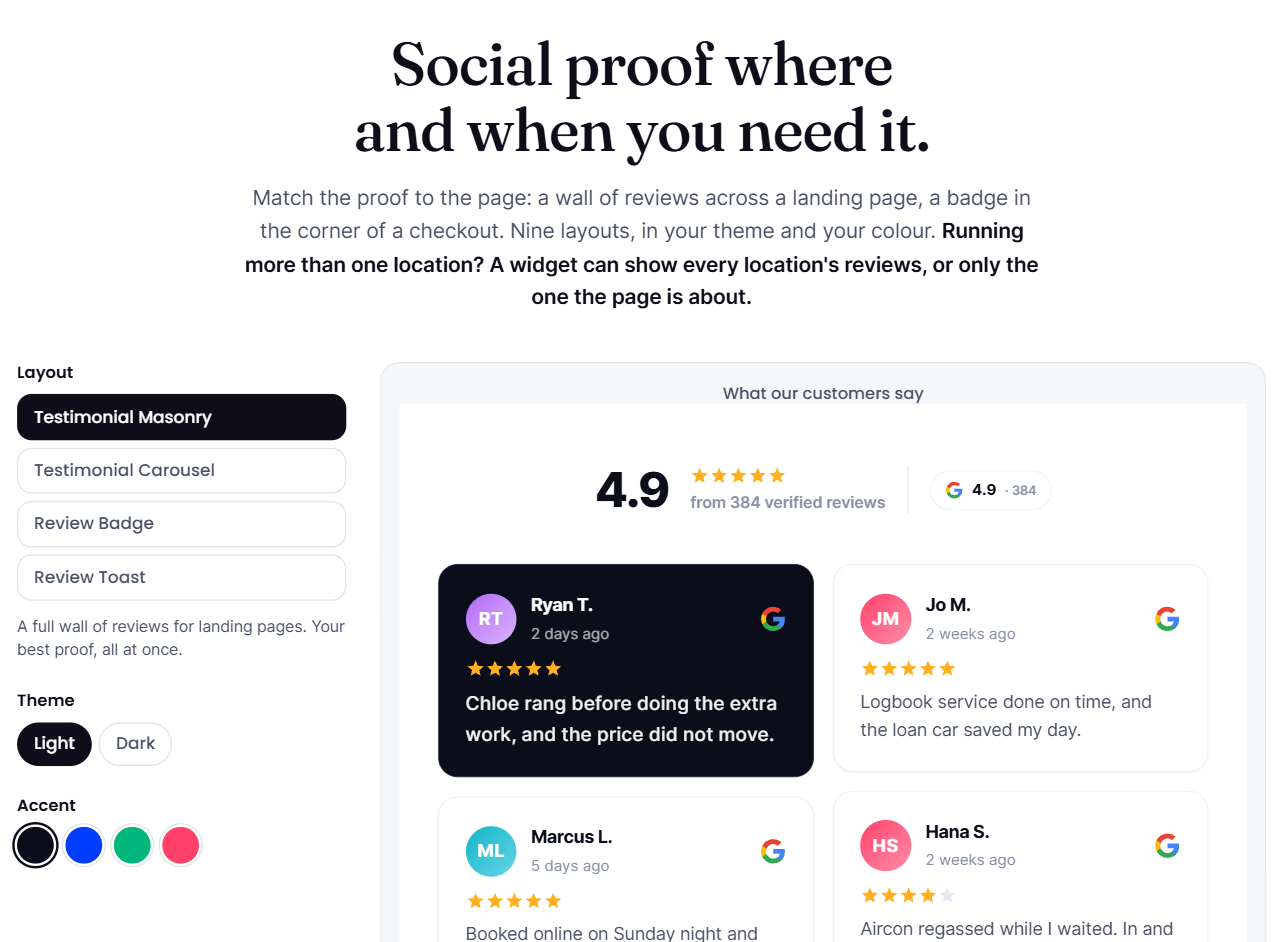
That one is ours. Cloutly connects a Google location, gives you nine layouts and hands back a snippet for a Wix embed or any other site that accepts HTML. You can see the layouts on the review widgets page. New reviews appear in the block on their own.
Keep the async attribute, whichever service you use. Without it, the browser stops building the page while it fetches the widget.
What Wix's Embed HTML element does to your widget
Most problems here come from Wix's embed element, not the widget.
It is an iframe, and it will not resize itself
Wix says it plainly in Embedding a site or a widget: "The HTML and URL elements in our editor are iFrames. Therefore, the code or site you are embedding won't be responsive, even if it is originally." Your widget sits inside the fixed box you drew on the canvas. It does not measure itself against the page.
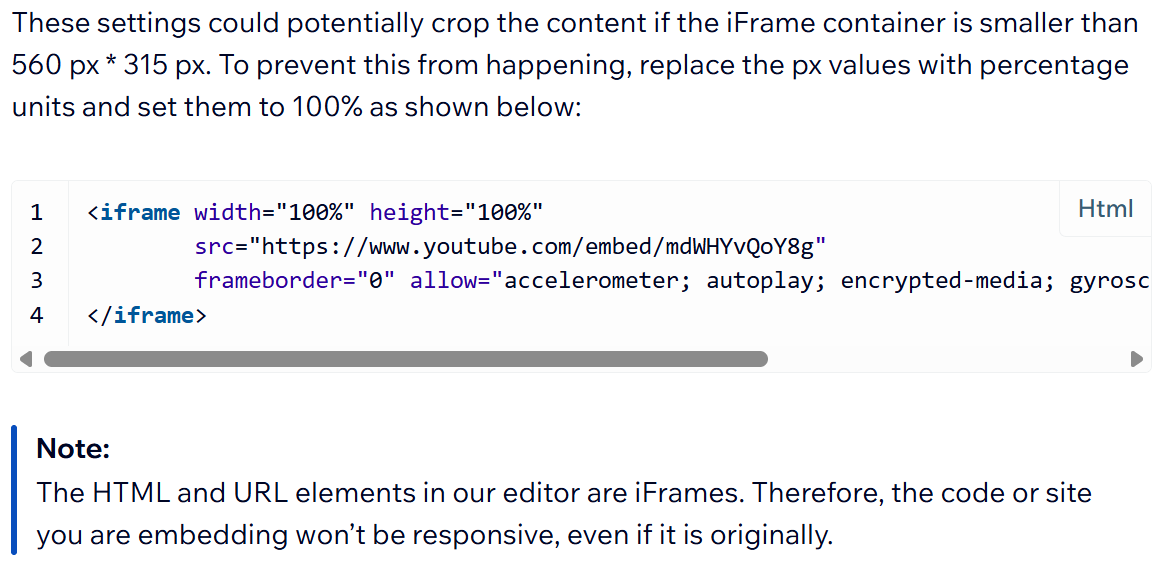
Reviews do not all take up the same space. An element sized for a two-line review can crop a six-line one. Wix's fix, in the same article, is to "replace the px values with percentage units and set them to 100%" in the code you paste. A script-only snippet has no px values to change, so the element's height is your only control. Size it for your longest review, then check it again a month later.
HTTPS only
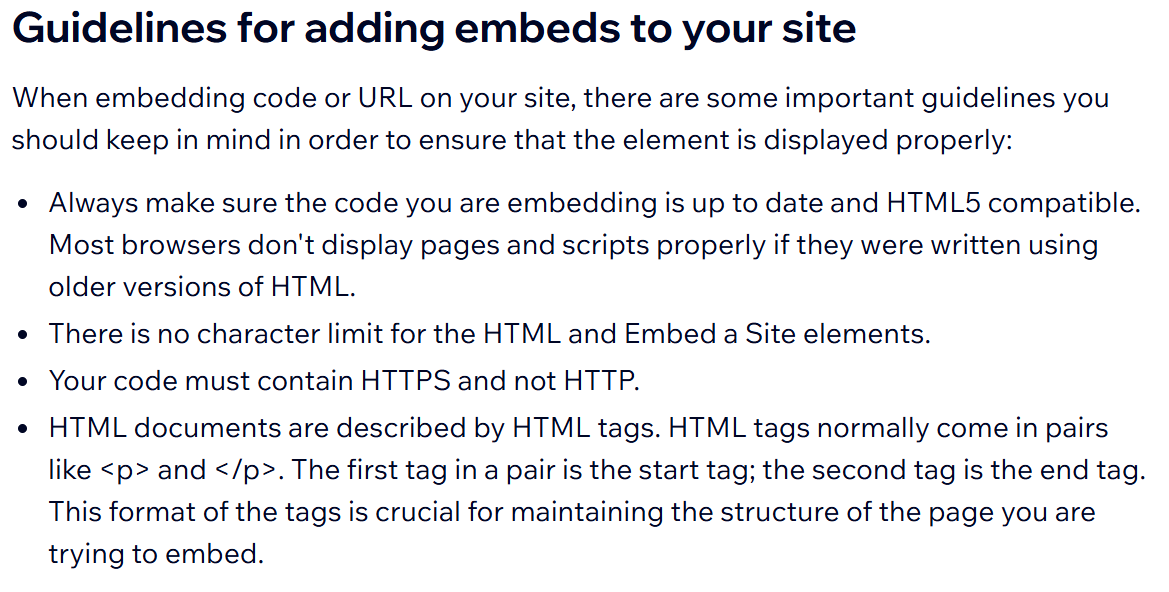
Wix is blunt: "Your code must contain HTTPS and not HTTP", and "only HTTPS codes and URLs are displayed". An http:// script src produces a blank box and no error message.
Wix draws the same support line around both routes: "we cannot provide support for external codes that were not created or tested by Wix". If the block is empty, contact the widget provider.
You do not need Velo, and you do not want a custom element
Wix's custom element is a different feature with a real condition attached: "For security reasons, to use the custom element, you must upgrade your site with a Premium Plan, connect a domain and have no ads on it." A review widget does not need it. Use an ordinary script tag in an ordinary embed. Dev Mode is unrelated.
Do you need a paid Wix plan to embed Google reviews?
Not for one Embed HTML element on one page. Wix's article for that element documents no plan requirement, and the element sits in the Add panel whatever you are paying.
The plan question usually comes from advice to install the widget site-wide through Settings > Custom Code in the dashboard. That advice fails for two reasons.
Custom Code cannot show a widget at all. Wix's own article says the snippets you add there are "always invisible to your site visitors", and its FAQ sends you straight back where you came from: to display visual content, add an iFrame with HTML code.

Custom Code is gated as well. It opens with "make sure that your site is published and has a connected domain", and Wix's domain article closes the loop: "to connect your domain, you must upgrade your site. If your site doesn't already have a Premium or Studio site plan, you can choose to either upgrade your site, or reassign an existing plan."
So a review block on a free wixsite.com address is fine. Adding one to every page without editing every page is not, and Custom Code cannot do it for you.
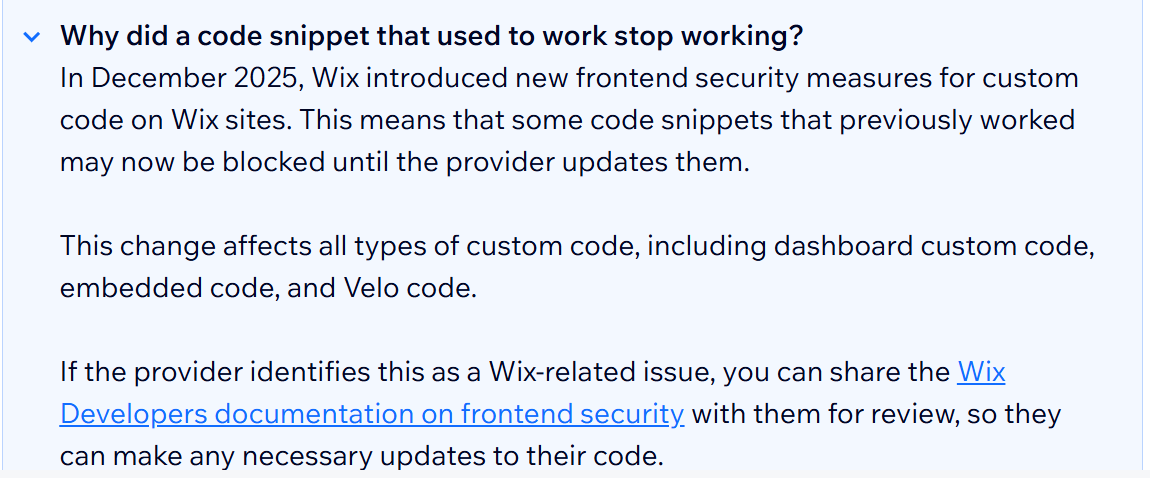
Wix added one recent caveat. "In December 2025, Wix introduced new frontend security measures for custom code on Wix sites. This means that some code snippets that previously worked may now be blocked until the provider updates them." Wix says it affects dashboard custom code, embedded code and Velo code alike. If a widget that worked last year is now a blank box, start with the provider.
How to add Google reviews to a Wix website, step by step
- Build the widget first. Connect the Google location in your review service, choose a layout, set the theme and copy the snippet. It is faster to settle the look before you start publishing and previewing in Wix.
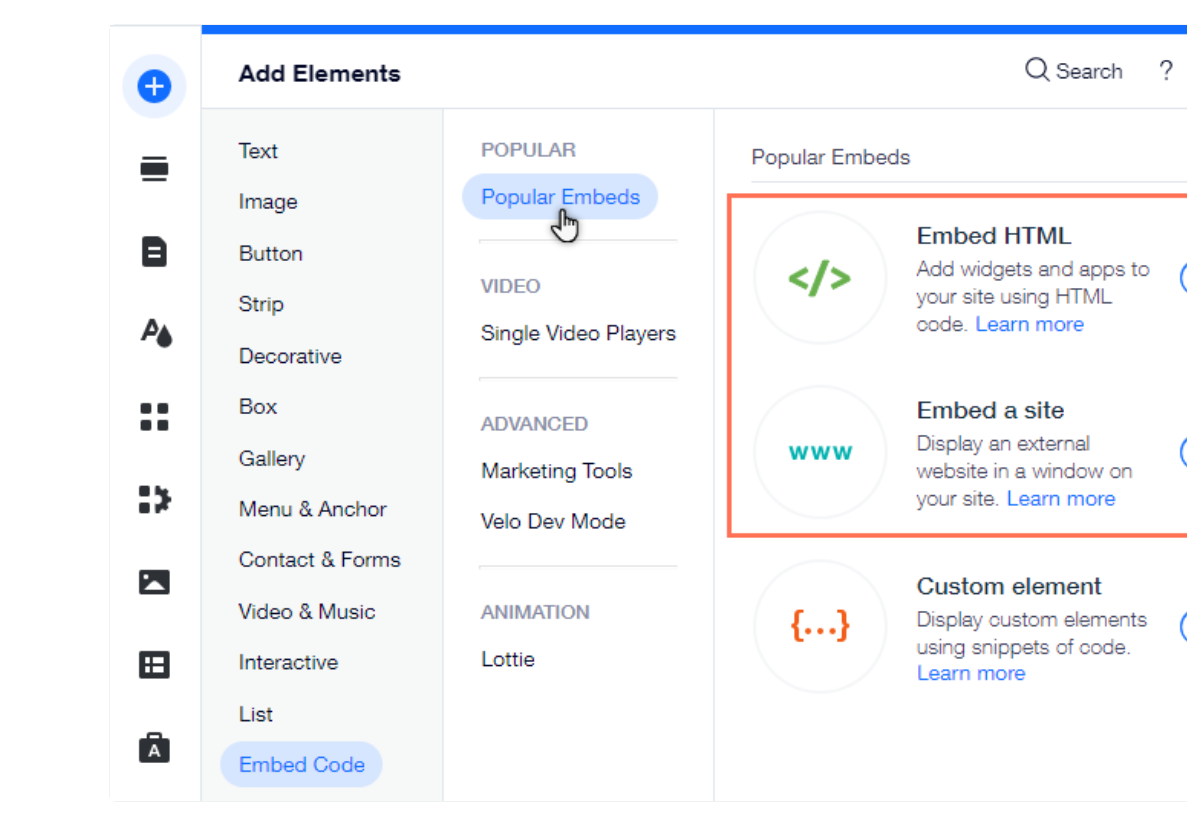
- Open the page in the Wix Editor and click Add Elements on the left, then Embed Code, then Popular Embeds, then Embed HTML. Popular Embeds is an option in the middle column, not a heading. Choose Embed HTML from the column on the right. The element arrives on the canvas as an empty box.
- Drag the box to where the reviews belong. On a service page, put it below the booking or enquiry button rather than at the bottom of the homepage. Reviews help where someone is deciding, not where the page happens to end.
- Click the element, then Enter Code, and paste the snippet under Add your code here. The panel asks What do you want to add? and offers Website address and Code, so choose Code. Then click Apply.
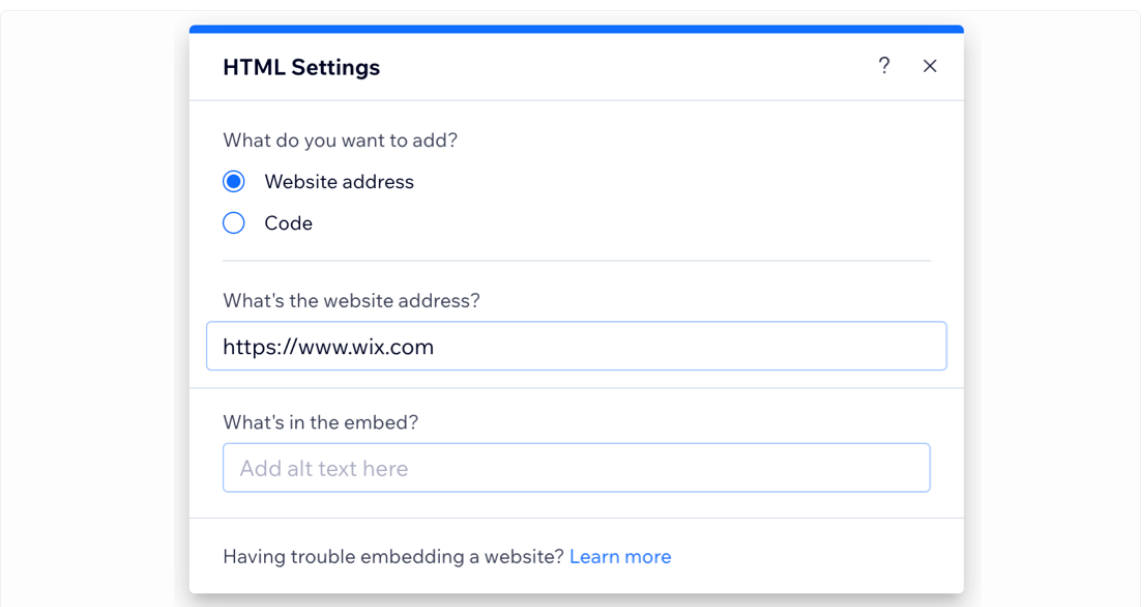
- Write the alt text in the field labelled What's in the embed? A screen reader gets no other description, because the frame's contents are invisible to the page.
- Size the box. Drag the handles until the longest review fits, then leave a little more room.
- Preview, publish, and open the live site. An embed can look fine in the editor and be empty on the live page. The usual causes are the HTTPS rule, a script the preview never ran or the December 2025 change above.
Wix Studio puts it under a different menu
Studio is a separate editor with different panel names, so the Wix Editor path will send you looking for a menu that is not there. In Studio the path is Add Elements > Embed & Social > Embed Code, then Enter Code, paste, Apply (Studio Editor: Adding an HTML iFrame Element).
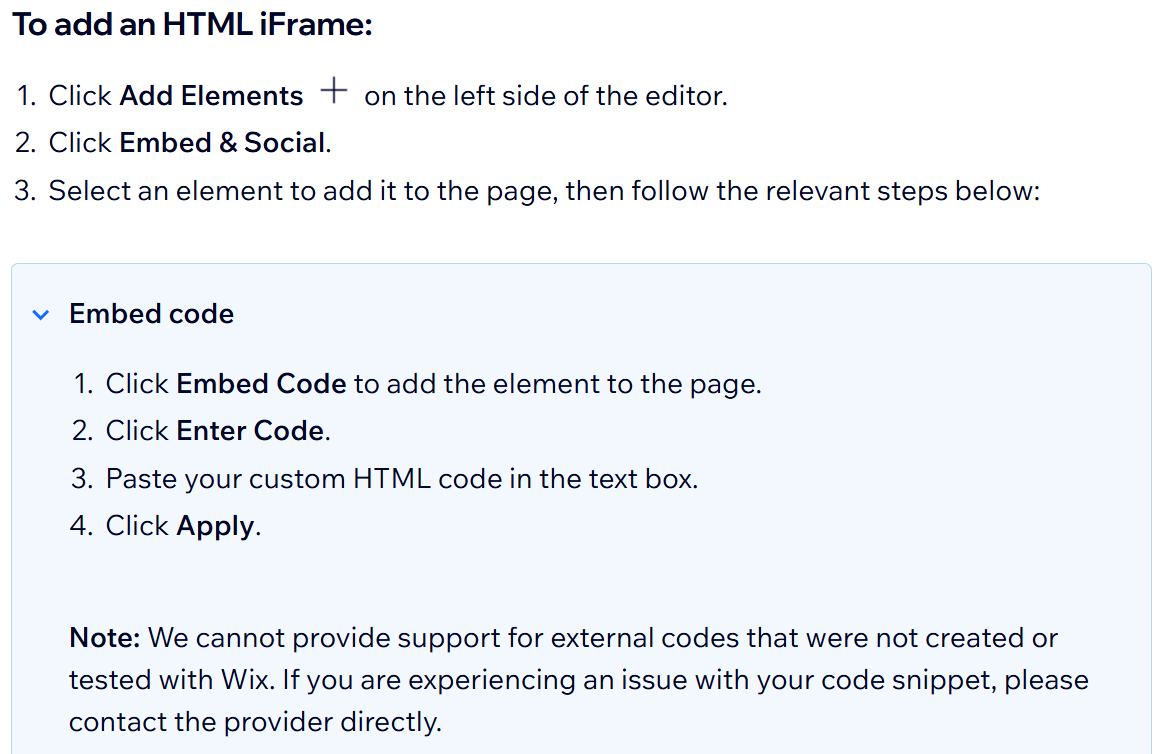
Studio documents one detail that the classic Editor's article leaves out: your code runs in a sandboxed iframe, with allow-scripts and allow-same-origin re-enabled among others. That lets a script-tag widget run there.
The mobile version is a second job
Do not assume the desktop block carries over. Wix's mobile embeds article says desktop embeds may display differently on a phone because "certain iFrames are designed for specific screen sizes, and may not fit or align correctly on mobile devices". Its advice is to hide the desktop version and add a mobile-friendly alternative in the mobile editor.
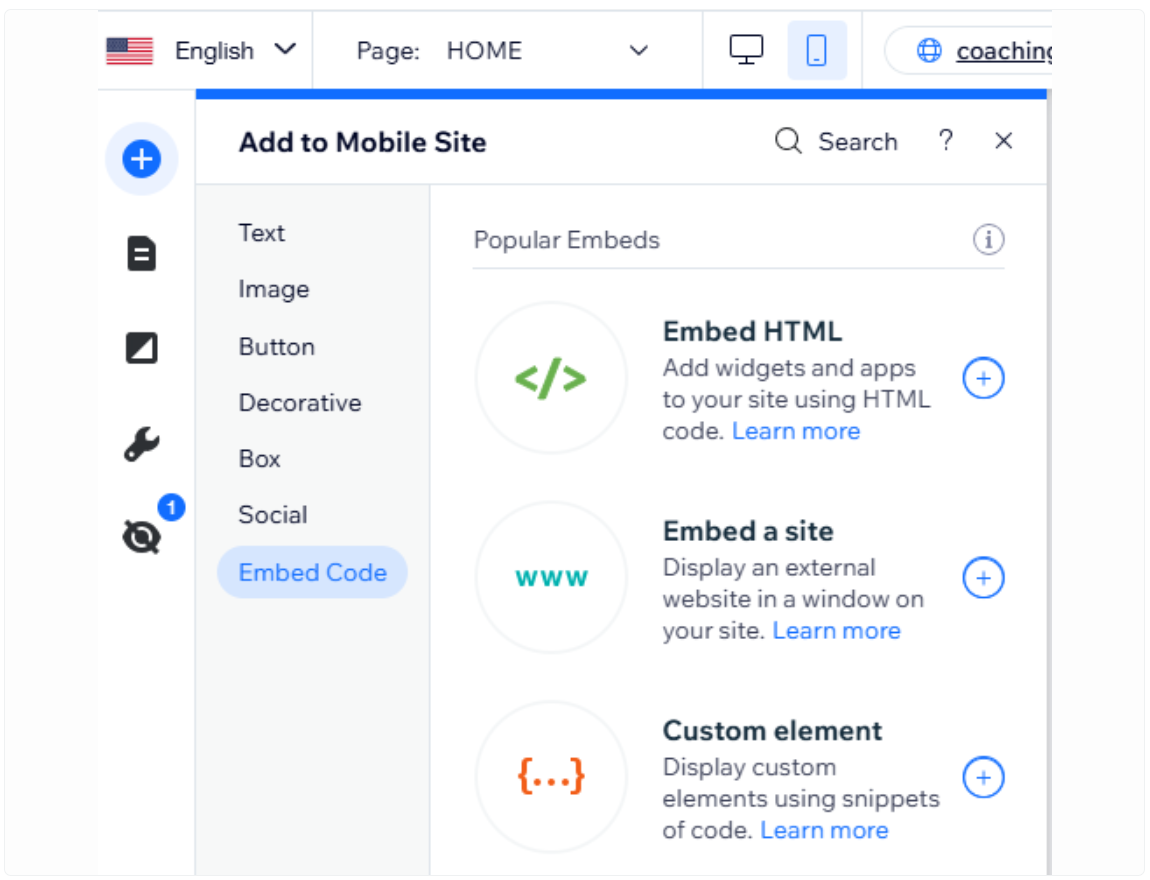
Anything you add in the mobile editor is mobile-only and never appears on desktop. Give it its own snippet, height and usually a narrower layout. A three-column wall that reads well at 1440 pixels becomes a column of slivers at 390. A single-column list or carousel holds up better. The mobile path is shorter: Add > Embed Code > Embed HTML, with no Popular Embeds step in between.
Keeping the block honest, and current
Check these before you publish. The parent guide on how to embed Google reviews has the full treatment. This is the short version.
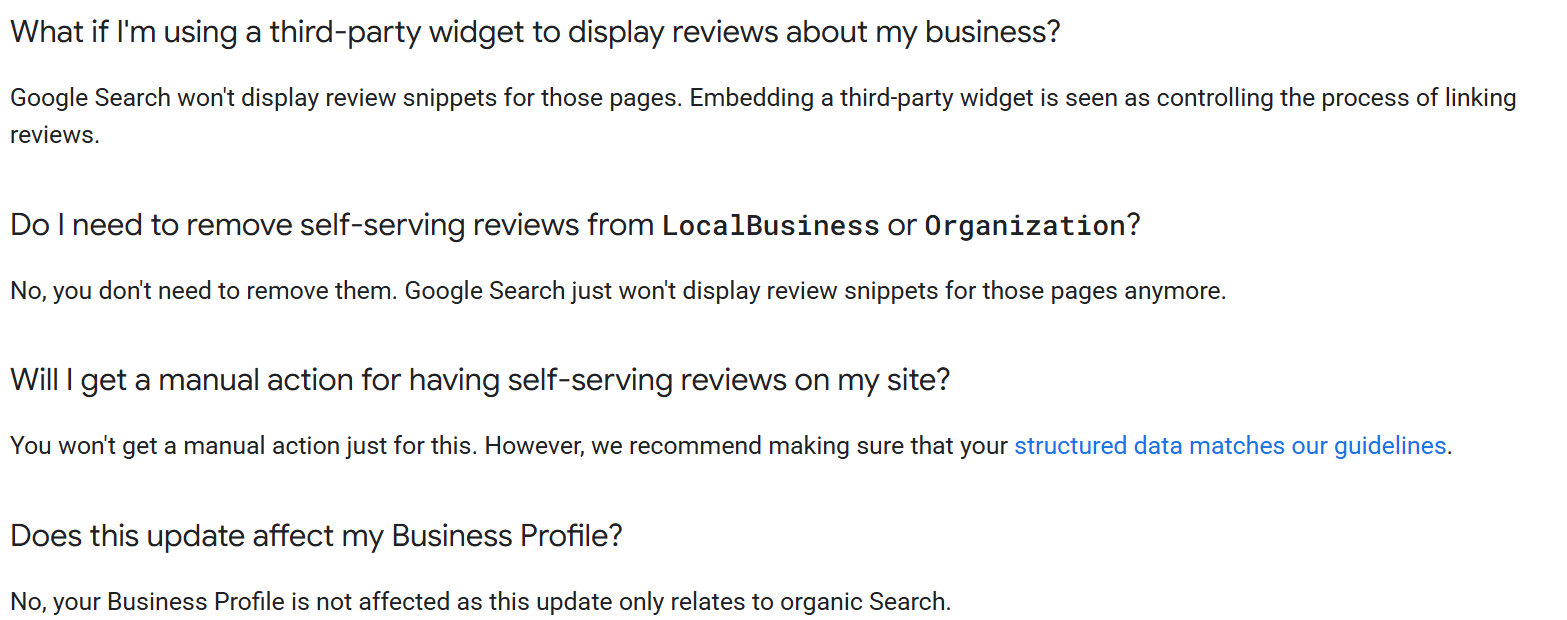
Google will not give you stars in search for reviews you host about yourself, and it names widgets specifically. Its 2019 review rich results FAQ says: "Google Search won't display review snippets for those pages. Embedding a third-party widget is seen as controlling the process of linking reviews." Switching on your widget's review schema is still worth doing, because it puts the rating on the page in a form search engines can read. It will not put stars under your own result. Your Business Profile is a separate surface and is unaffected.
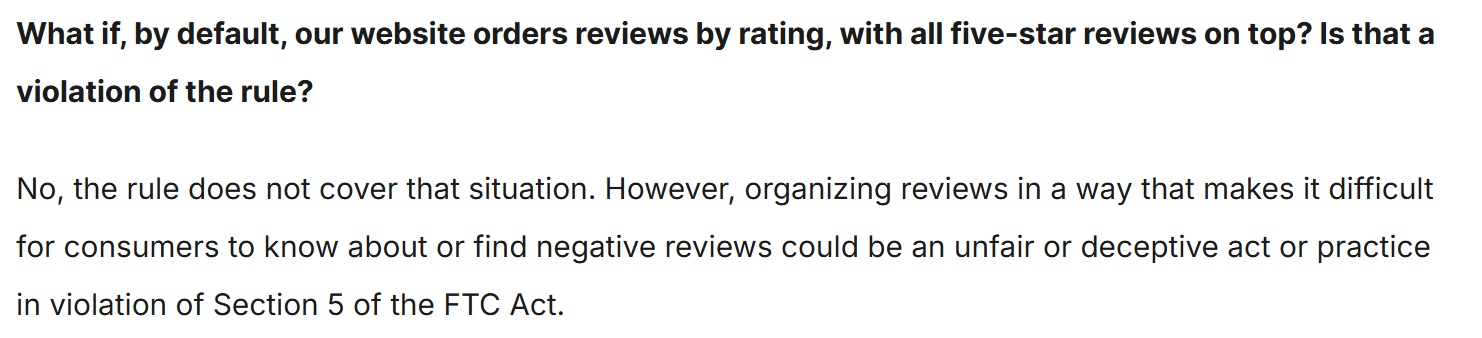
Do not present a filtered block as everything you have. The FTC's Rule on the Use of Consumer Reviews and Testimonials went into effect on 21 October 2024. Its review suppression provision covers misrepresenting the reviews in a part of your site dedicated to displaying reviews as most or all of what you received. The FTC's own questions and answers add an important limit: sorting five-star reviews to the top is not covered by the rule, "however, organizing reviews in a way that makes it difficult for consumers to know about or find negative reviews could be an unfair or deceptive act or practice in violation of Section 5 of the FTC Act". None of this is legal advice. Use a filter you can explain in one sentence, put that sentence near the block and link to your Google profile. Ask every customer for a review, not a screened subset.
A review block can go stale where customers see it. Coastline Physio, a fictional two-clinic practice, could embed four good reviews under the Book now button on each clinic page and forget about it. A year later, the newest date still reads 2025 and the block makes the opposite case. An embed commits you to keep collecting. Send the Google review link after a job to keep the dates moving; how to get more Google reviews covers the rest.
FAQ
Can I add Google reviews to Wix for free? On one page, yes. The Embed HTML element carries no documented plan requirement, so the cost is whatever your widget service charges. Free tiers usually cap the reviews shown and keep the vendor's badge on the block.
Do I need a Wix Premium plan? Not for the embed. You need one for anything going through Settings > Custom Code, which requires a published site with a connected domain. Custom Code will not display a review block anyway, so it is rarely the reason to upgrade.
Why is my Wix embed a blank box? Check the protocol first: Wix only displays HTTPS code. Then check whether you are looking at the editor rather than the published page, and whether the element is tall enough to show anything. If a snippet worked before and stopped, ask the provider about Wix's December 2025 frontend security change.
Will the widget slow my Wix site down? It can. Third-party JavaScript loading in an iframe is often why a page that used to load quickly no longer does. Run a speed test after you add it, not before.
I use Squarespace as well. Is it the same? Close, but the surface differs. Squarespace takes the snippet in a code block rather than an iframe element, and JavaScript in a code block needs a Core plan or above. There is a separate walkthrough for adding Google reviews to Squarespace.