
How to add Google reviews to Squarespace (code block)
Squarespace's Embed block does not run a Google reviews widget. Use a code block instead, on the Core plan or above.
Lachlan Fea 8 min read
In this article8 sections

To add Google reviews to Squarespace, paste a widget snippet into a code block on a page, on a Core plan or above. Squarespace does not read a Google Business Profile, so a third-party service has to supply the reviews. The block you paste them into decides whether anything renders at all.
I checked this on 6 September 2026 against the Squarespace Help Center, Google's review snippet documentation and the FTC's consumer reviews rule. I could not sign in to a Squarespace account for this piece, so the pictures below are Squarespace's own help pages, each captured from the article the rule comes from. Squarespace publishes no screenshots of its own editor, so there is no picture here of the block menu.
Which Squarespace plan do you need to add Google reviews?
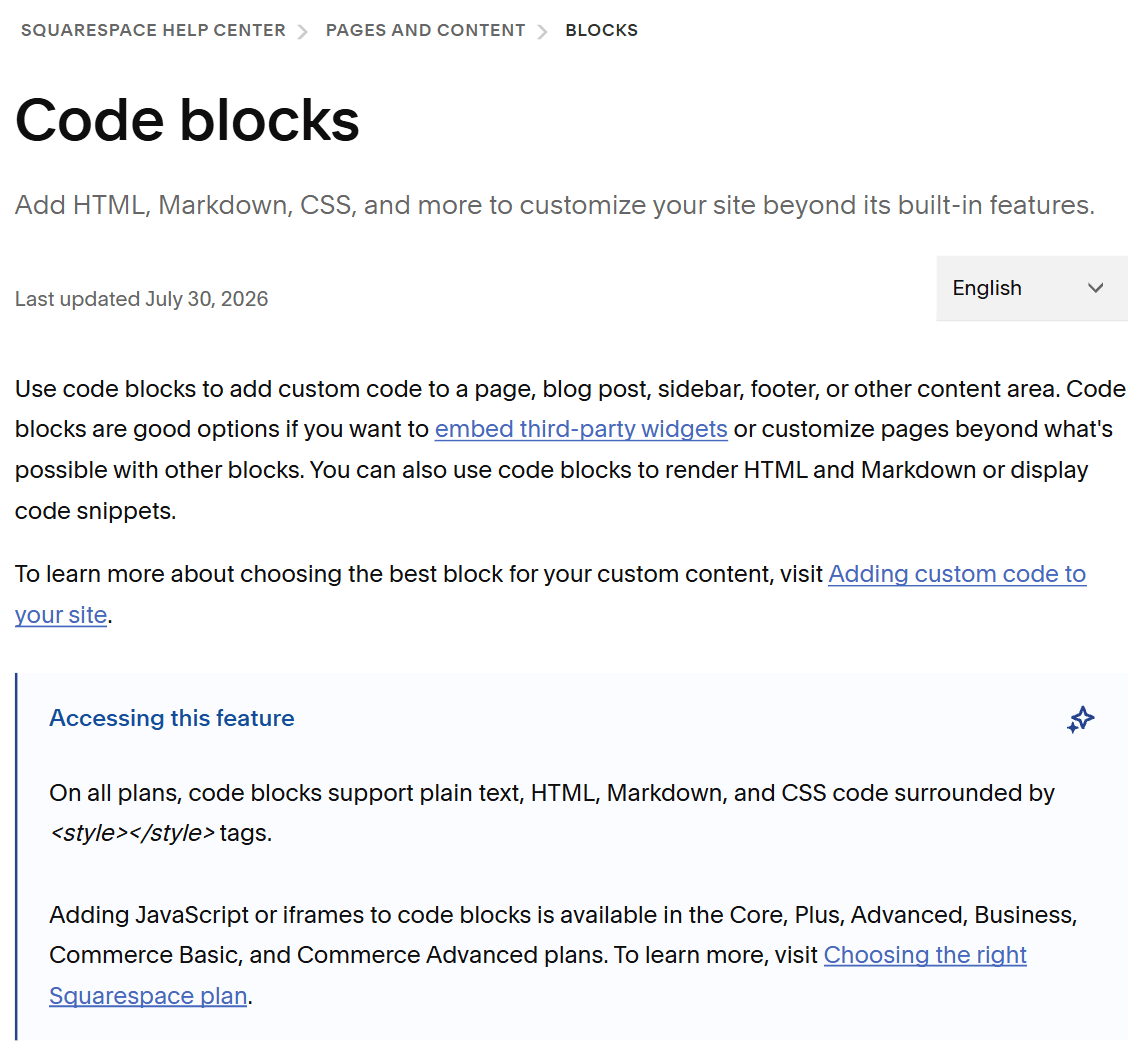
A review widget is JavaScript, and JavaScript in a code block is a paid feature. Squarespace's code blocks guide draws the line in two sentences: "On all plans, code blocks support plain text, HTML, Markdown, and CSS code surrounded by <style></style> tags", and "Adding JavaScript or iframes to code blocks is available in the Core, Plus, Advanced, Business, Commerce Basic, and Commerce Advanced plans."
Those six plan names are not a mistake. The current lineup on Choosing the right Squarespace plan is Basic, Core, Plus and Advanced, and Business, Commerce Basic and Commerce Advanced are older names Squarespace still honours. Squarespace puts no date on the change, only that "we sometimes change our plans to best group features for our customers". An older guide telling you to buy the Business plan means Core.
| Plan | JavaScript in a code block | Code injection |
|---|---|---|
| Basic | No | No |
| Core | Yes | Yes |
| Plus | Yes | Yes |
| Advanced | Yes | Yes |
| Business, Commerce Basic, Commerce Advanced (older names) | Yes | Yes |
Core is the first plan whose feature list carries the line "Custom code, including the code block and code injection".
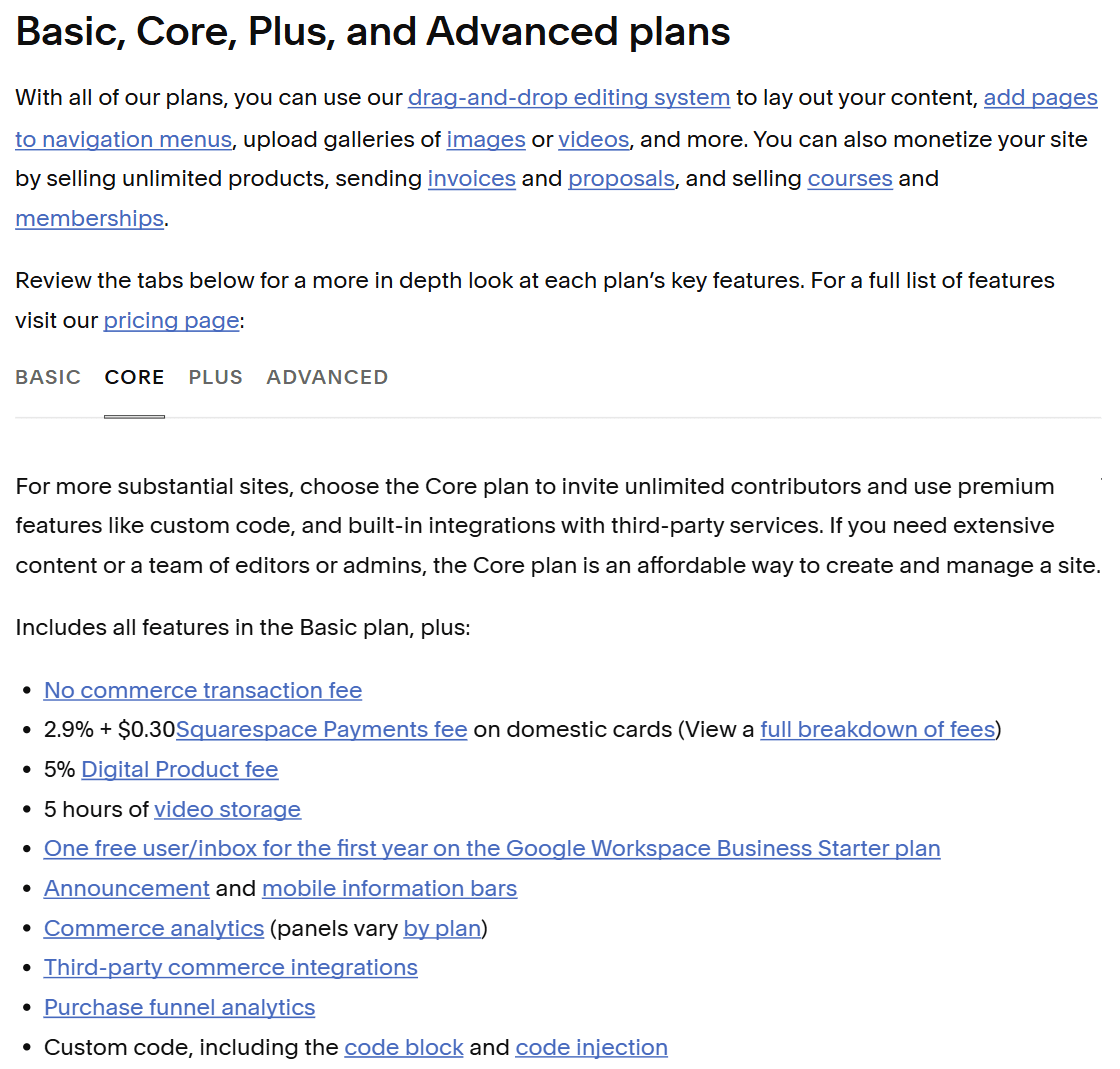
On Basic you can still paste the snippet into a code block. The script will not run. Squarespace does not publish what you see in its place, so check the plan before you debug anything else.
Squarespace has no Google reviews feature
Squarespace does have a reviews feature, and it is the wrong one. Customer reviews emails a buyer automatically 14 days after you fulfil their order, and the limit is in Squarespace's own words: "Customers can leave reviews for physical, download, service, and subscription products. It's not possible to collect reviews for gift cards or broadly for your business." Those reviews live on product pages in a store. They never touch your Google profile.
The other route people expect is Squarespace Extensions, which Squarespace calls "the equivalent of plugins, add-ons, or apps". They connect on all plans. Reading the catalogue on 6 September 2026, there is no Google reviews widget in it.
Price the dependency before you connect one anyway. Squarespace says extensions "aren't official Squarespace integrations" and "fall outside our scope of support", and that after you disconnect one "the service may still have data you sent while the extension was connected". A snippet you delete in one click is the smaller commitment.
Either way, you are using a third-party snippet. The choice that causes trouble is which of Squarespace's three code surfaces to put it on.
Code block, embed block or code injection
Squarespace takes code in three places, and picking the wrong one causes most of the failures.
| Route | What it is for | Use it when |
|---|---|---|
| Code block | Custom HTML, and JavaScript on Core and above | The reviews belong in one spot on one page |
| Embed block | oEmbed content from services Squarespace recognises | You are embedding a video or a social post, not a widget |
| Code injection | Site header or footer, every page | A floating badge or a script you want everywhere |
The embed block is the trap because it has the right-sounding name. Squarespace's embed blocks guide says embed blocks "pull content from services that use the oEmbed standard or manually set embed codes", then closes the door in a single line: "To add other code to your site, use code blocks." A widget's script tag is not an oEmbed response. What you get is an empty box.
Code injection is site-wide, not sectional. Code injection puts code in the <head> tag or before the closing </body> tag on every page of the site, which suits a floating badge and little else. It runs on Core, Plus, Advanced and some legacy plans, and it has a documented hole: "Code injection won't appear on Index landing pages." A per-page version sits in the Pages panel, under the gear icon, then Advanced.
Fluid Engine or the classic editor: where the block can go
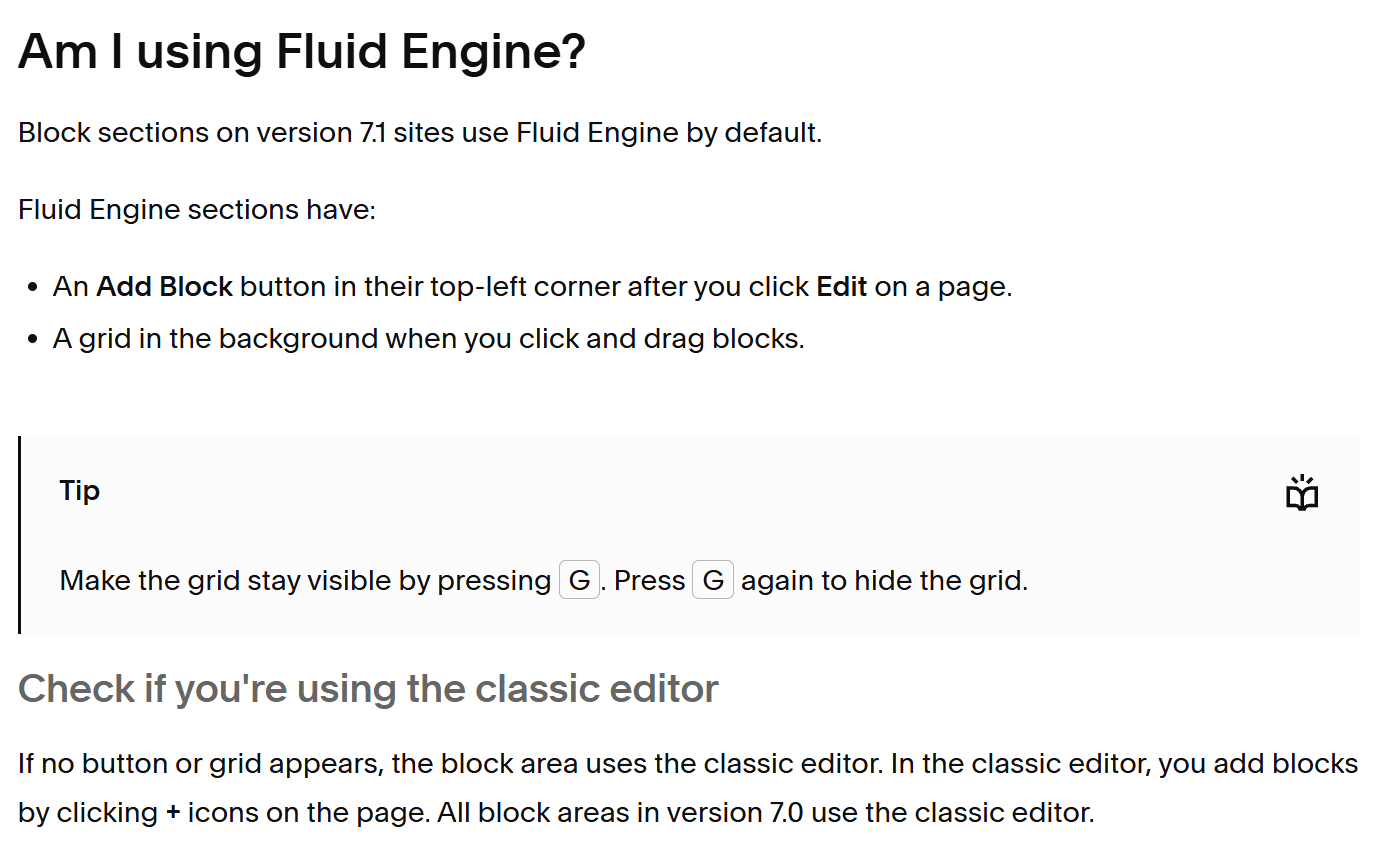
Fluid Engine is "the primary editing experience for sites on Squarespace version 7.1" and "isn't available on version 7.0 sites". Telling the two apart takes a second. A Fluid Engine section has an Add Block button in its top-left corner once you click Edit, and a grid behind the blocks as you drag them, which you can pin by pressing G. No button and no grid means the classic editor, where you add blocks by clicking a + icon instead. Every block area on version 7.0 uses the classic editor.
Fluid Engine lets you place a reviews block exactly, then rearrange it for phones. Squarespace's mobile layout guide is specific: "You can arrange the mobile layout of Fluid Engine sections without affecting the desktop layout." It stays one block, so the phone view needs no second copy of the snippet.
Version 7.0 restricts where blocks can go at all. You cannot add one to an album, blog, cover, events, gallery, index or store page. If the reviews belong on a page of one of those types, per-page code injection is the way in. Squarespace does not write that down as a recipe anywhere: it follows from the code injection article, and it is my inference rather than their instruction.
You cannot do either job on your phone. Squarespace's blocks guide says the app "doesn't support adding or rearranging blocks on layout pages, only editing existing ones". Do this at a desk.
How to add Google reviews to Squarespace, step by step
-
Build the widget before you open Squarespace. Pick the layout and theme in your review service, point it at the right Google location, and copy the snippet it gives you.
-
Open the page and click Edit. Hover over the section where the reviews belong, then click Add Block, or a + icon in the classic editor.
-
Choose Code from the block menu, then click the pencil icon on the block to open its editor.
-
Leave the Type menu on HTML and paste the snippet. Squarespace is blunt about this one: "Code blocks set to CSS or JavaScript display code as text by default. To render CSS or JavaScript in code blocks, select HTML from the drop-down menu." Pick JavaScript and your visitors read your script tag instead of your reviews. Leave Display Source switched off.
The snippet is usually one line with an id in it:
<script src="https://app.cloutly.com/add-widget-v2.js" data-widget="YOUR-WIDGET-ID" async></script>That one is ours. Cloutly holds the connection to your Google location, offers nine layouts, and gives back one line. A Squarespace code block takes it as it is, and so does any other site that accepts an HTML snippet. The review widgets page shows the layouts. Keep the
asyncattribute whatever service you use, or the browser stops building your page until the widget arrives. -
Put the block next to the ask. Directly beneath the booking or enquiry button on a service page, not down at the foot of the homepage. A reviews block in a footer is decoration. One above the form is evidence.
-
Save, then open the live page in a private window. The editor proves nothing, for the reasons below.

Why your review block is blank
Check these four documented causes in this order.
You are logged in. Squarespace says so on the code blocks page: "As a security measure, sometimes your code won't appear when you're logged in, even if visitors can see it." Click Preview in Safe Mode, or use a private window.
You are on Basic. See the plan table. The block is sitting on the page and the script is not running.
The page sits inside an Index. Squarespace lists this in its own troubleshooting: "Your code might not render if you've added it to a page within an Index."
Ajax loading is on. Version 7.0 only. Ajax loading swaps page content without a full reload on five template families, Brine, Farro, Skye, Tremont and York, and Squarespace warns that it "may conflict with embedded custom code". The tell is a block that works on a hard refresh and disappears when a visitor arrives through your own navigation.
Squarespace support will not troubleshoot any of it. It says code-based customisation "falls outside the scope of our support", and names the part that bites: "how it functions with our responsive design, particularly its appearance on mobile devices." Check the block at 390 pixels wide yourself, and run a speed test afterwards. Third-party JavaScript is the usual culprit when a page that used to load quickly stops.
Stars, filtering, and keeping the block current
Two things to settle before you publish, and one habit to start. The parent guide on how to embed Google reviews carries the long version, including the Places API and the screenshot route.
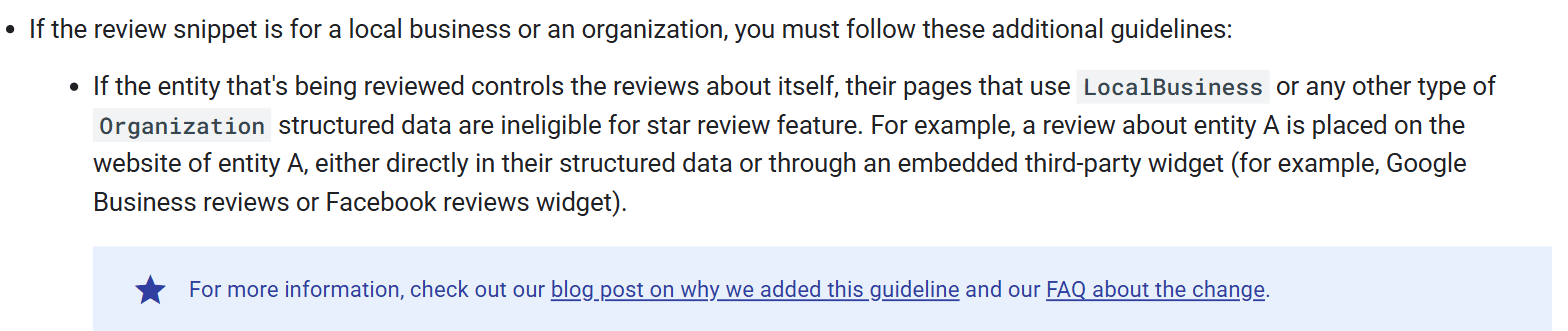
An embedded block will not put stars under your own result in Google. Google's review snippet documentation says that where the reviewed entity controls the reviews about itself, its pages using LocalBusiness or Organization structured data "are ineligible for star review feature", and the example Google gives is a review about a business placed on that business's own site "through an embedded third-party widget". Your widget's review schema is still worth switching on: it puts the rating on the page in a form search engines can read. Stars under your own result are not what it buys.
Filtering is where a review block gets legally interesting. The FTC's Rule on the Use of Consumer Reviews and Testimonials went into effect on 21 October 2024, and its review suppression provision, 16 CFR 465.7, covers representing the reviews on a part of your site dedicated to reviews as most or all of the reviews you received, while negative ones are held back. The carve-out is the part worth designing around: a review is not suppressed if you remove it under a rule you apply to every review regardless of what it says. So pick a rule you can state in one sentence, apply it to all of them, and ask every customer rather than a screened few. None of this is legal advice, and the FTC's questions and answers is the plainer read.
One block on every page is the lazy version. Coastline Physio, a fictional practice, runs two clinics, and the same snippet on both pages is what most sites ship. Point each clinic page at that clinic's reviews instead, then keep them arriving. A block whose newest date still reads 2025 a year from now argues against you in public, so send the Google review link after each appointment. How to get more Google reviews covers the rest.
FAQ
Can I add Google reviews to Squarespace for free? Not on Basic, because JavaScript in code blocks starts at Core. Above Basic, your only cost is the widget service. Free tiers usually limit how many reviews show and leave the vendor's name on the block.
Is there a Google reviews plugin for Squarespace? No. Squarespace does not use plugins the way WordPress does, and its nearest equivalent, Extensions, had no Google reviews widget in the catalogue on 6 September 2026. A code block and a snippet is the route.
Why does my code block show the code instead of the reviews? The Type menu is set to JavaScript. Set it to HTML, and check that Display Source is switched off.
I use Wix as well. Is it the same? Close, but the block and its limits differ. Wix takes the snippet in an Embed HTML element, which is an iframe that will not resize itself, and the phone version is a second element needing its own copy of the snippet. There is a separate walkthrough for adding Google reviews to a Wix website.